How to See What's Taking Up Space on Your Mac
Before you delete anything, find out what is actually using your disk. Here are four ways, from built-in to most detailed.
1. Storage settings (built in, quick)
Go to Apple menu › System Settings › General › Storage. After a moment you get a coloured bar split into Applications, Documents, Photos, Messages, iCloud Drive, macOS and System Data. Click the i next to a category to see its biggest items.
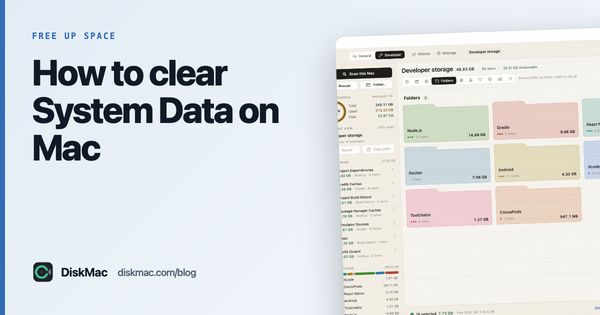
Good for: a fast overview. Limitation: it doesn’t show folders, and System Data is a black box (here’s how to open it).
2. Finder (built in, manual)
- Open your home folder (⇧⌘H).
- Switch to list view (⌘2).
- Press ⌘J and tick Calculate all sizes.
- Click the Size column to sort.
Drill into the biggest folder and repeat. To see ~/Library, hold Option and open the Go menu.
3. Terminal (fast, precise)
# biggest folders in your home folder
du -sh ~/* ~/.[!.]* 2>/dev/null | sort -rh | head -20

# biggest folders inside Library
du -sh ~/Library/* 2>/dev/null | sort -rh | head -20
du reports space actually used on disk, which is usually what you want.
4. A disk map app (visual, complete)
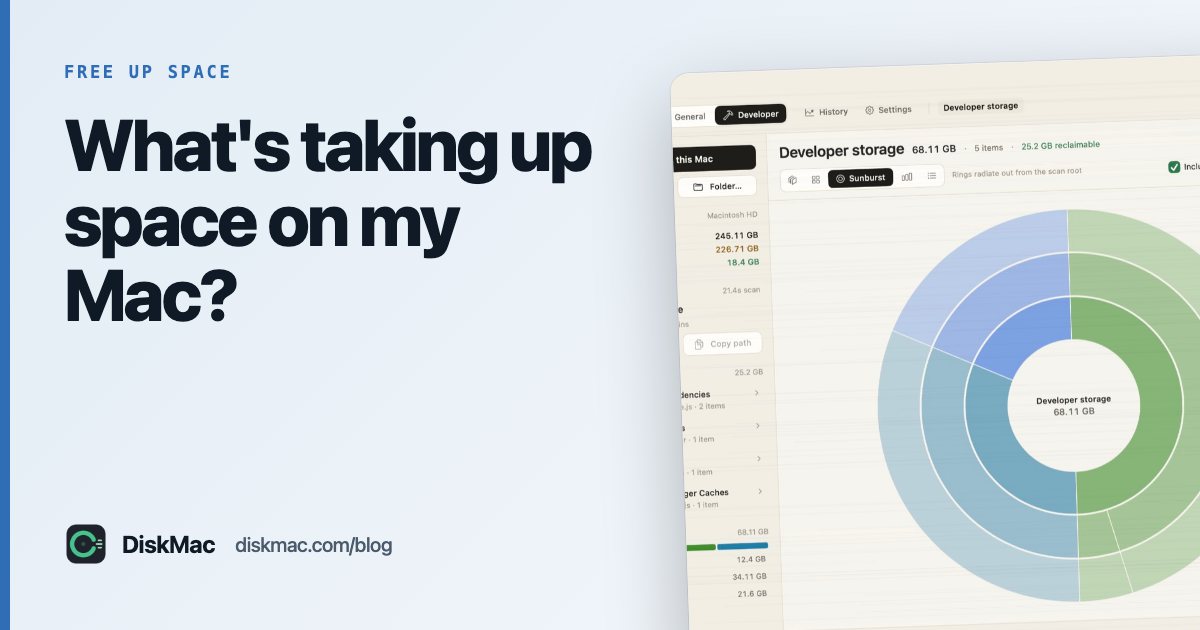
A disk map scans everything and draws it, so the biggest things are obvious. DiskMac does this for free, with ten views: a treemap where area equals size, a sunburst, ranked bars, a table, and Strata, which shows size and age together so old, large folders stand out. Select anything and it explains what it is.
Other options: DaisyDisk, GrandPerspective and OmniDiskSweeper — compared in the top disk space analyzers for Mac.
What you’ll typically find
| What | Where | Action |
|---|---|---|
| Photos library | ~/Pictures | iCloud Photos with Optimise Storage |
| iPhone backups | ~/Library/Application Support/MobileSync | Delete old ones |
| Downloads | ~/Downloads | Delete installers, old zips |
| App caches | ~/Library/Caches | Safe to clear |
| Leftover app data | ~/Library/Containers | Remove for deleted apps |
| Developer files | ~/Library/Developer, Docker, node_modules | Clean by tool |
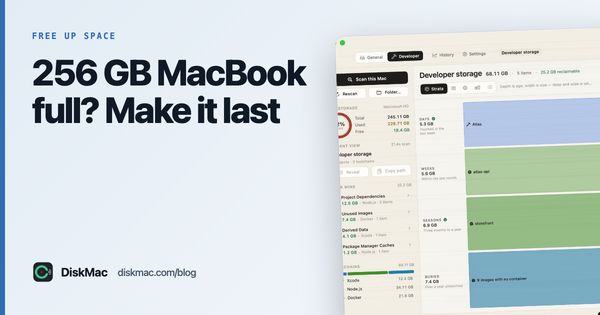
On a 256 GB MacBook every gigabyte counts — see how to make 256 GB last.
FAQ
Why does Finder show different sizes than Storage settings?
Finder adds up file sizes; Storage settings and du measure space used on disk, and Storage also counts purgeable and snapshot data differently.
How do I find hidden files taking up space?
In Finder press ⇧⌘. to show hidden files, or use du or a disk map app, which include them automatically.