How to Clear System Data on Mac (And What It Really Is)
Open System Settings › General › Storage and there it is: a grey bar called System Data, sometimes 50, 100, even 200 GB. You can’t click into it, and macOS doesn’t explain it. Here is what it is and how to make it smaller.
What is System Data?
System Data (called “Other” in older macOS) is simply everything macOS doesn’t put in another category. That includes:
- Time Machine local snapshots
- Caches — system, app and browser
- Logs and diagnostic reports
- iPhone and iPad backups and software updates
- Virtual memory (swap) and sleep image
- App support files and containers
- Developer files: Xcode, simulators, Docker, package caches
- Virtual machines and disk images
Because it is a catch-all, the only way to shrink it is to find out which of these is big on your Mac.
Step 1: see inside it
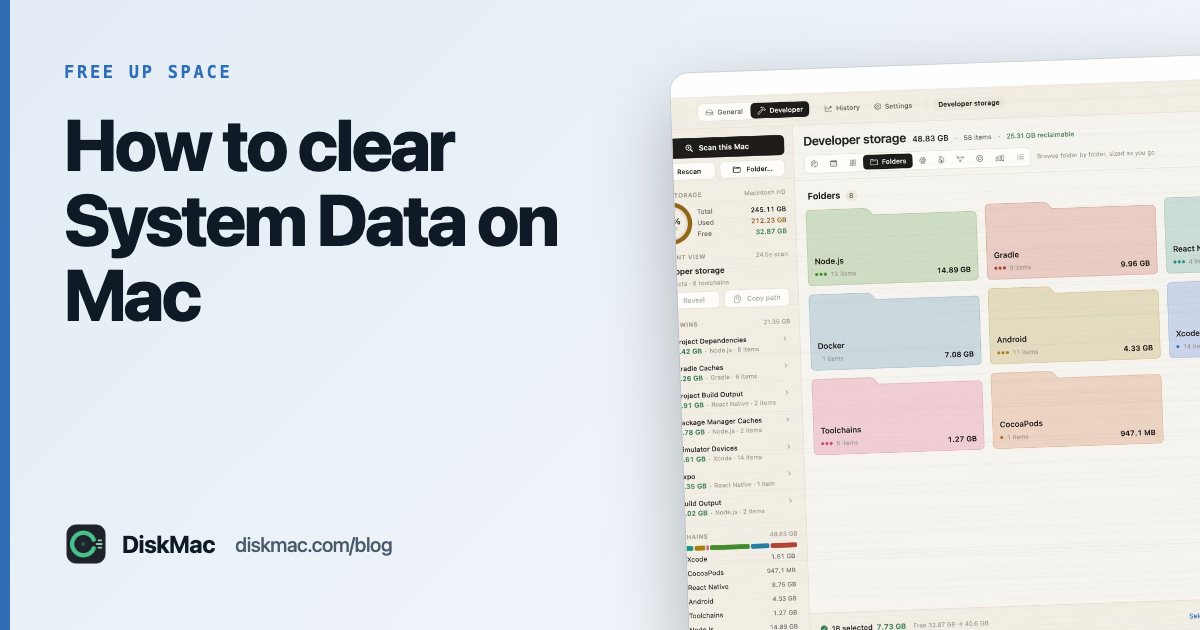
macOS won’t show you, so use a disk map. DiskMac’s free scan breaks down ~/Library and the rest of your home folder by size so you can see exactly what System Data is made of. In Terminal you can get a rough view with:
du -sh ~/Library/* 2>/dev/null | sort -rh | head -15Step 2: Time Machine local snapshots
If you use Time Machine, macOS keeps hourly snapshots on your internal disk. They are released automatically when space runs low, but they inflate System Data. List them:
tmutil listlocalsnapshots /To delete one: sudo tmutil deletelocalsnapshots 2026-10-20-101500 (use a date from the list). Running a full Time Machine backup to your external drive also lets macOS release them.
Step 3: iPhone and iPad backups
In Storage settings, open iOS Files and delete backups and software update files you don’t need. Backups live in ~/Library/Application Support/MobileSync/Backup.
Step 4: caches
~/Library/Caches is safe to clear while the apps are closed — they rebuild what they need. Browser caches can be several gigabytes each. See how to clear cache on Mac.
Step 5: logs
~/Library/Logs and DiagnosticReports are usually small, but a misbehaving app can write gigabytes. Safe to delete old logs.
Step 6: developer files
On a developer’s Mac this is often the biggest part of System Data: ~/Library/Developer (Xcode), Docker’s disk image in ~/Library/Containers/com.docker.docker, and Android SDKs. See our guides on Xcode and Docker.
Step 7: leftovers from deleted apps
~/Library/Containers, Application Support and Group Containers keep data from apps you removed long ago. See uninstalling apps completely.
Step 8: restart
A restart clears temporary files and swap, and gives macOS a chance to purge what it can. Sometimes this alone frees several gigabytes.
If the disk is so full that macOS is warning you, start with the startup disk full fixes first.
What not to delete
- Anything in
/System— it is read-only and protected anyway. /private/var/vmwhile the Mac is running.~/Library/Keychains,MailandMessagesfolders unless you know what you’re removing.
FAQ
Why is System Data so large on my Mac?
Usually Time Machine snapshots, iPhone backups, caches or developer tools. A disk scan tells you which.
Is it safe to delete System Data?
You can’t delete the category itself, only what it contains. Caches, old backups, logs and developer build files are safe; system files and app data are not.
Does System Data include purgeable space?
Partly. Some of it is purgeable and macOS will free it when needed — see purgeable space on Mac.