The 7 Best Mac Cleaner Apps in 2026, Tested and Compared
Search for “best Mac cleaner” and most of the results are written by companies that sell one. This list is too — we make DiskMac — so we’ll be upfront about where it fits and where something else is the better choice.
We judged every app on four questions:
- Does it show you what is using space, or just give you a “junk” total to trust?
- Is it safe — does it explain what it deletes, and can you undo it?
- What does it really cost over three years, not just in year one?
- Is it a good Mac citizen — native, small, notarised, no nagging?
Prices checked October 2026. Vendors change them often, so confirm on their site before buying.
Quick picks
| App | Best for | Price |
|---|---|---|
| DiskMac | Seeing where space went, developer junk, uninstalling | Free to scan, $9 once to clean |
| CleanMyMac | All-in-one with malware scanning | Subscription, or a one-time licence above $100 |
| DaisyDisk | Visual disk map, nothing else | $9.99 once |
| OnyX | Free system maintenance for confident users | Free |
| AppCleaner | Free app uninstalling | Free |
| GrandPerspective | Free treemap of your disk | Free |
| macOS Storage settings | The first thing to try | Built in |
1. DiskMac — best for seeing exactly where your space went
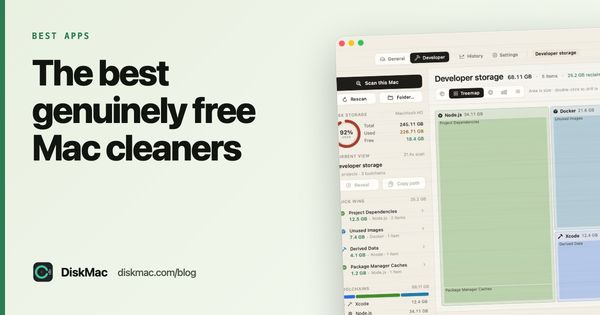
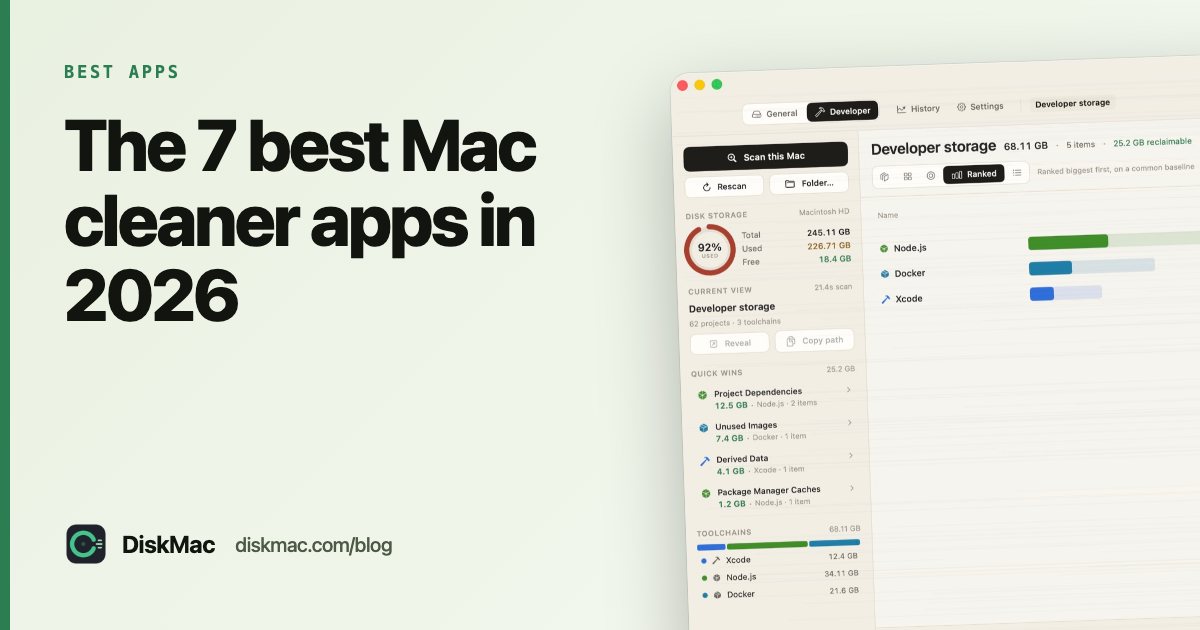
DiskMac scans your Mac and draws the result ten different ways — treemap, sunburst, ranked bars, a table, and Strata, which plots size against age so forgotten folders stand out. Every item comes with a plain explanation of what it is and whether it is safe to remove.
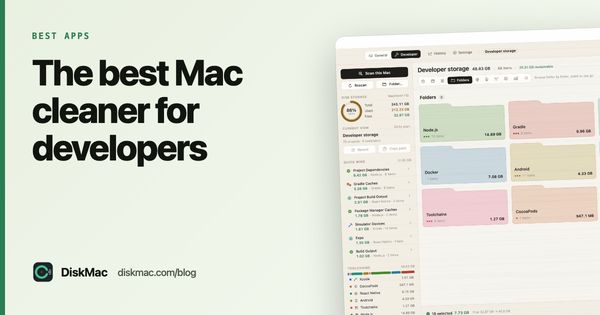
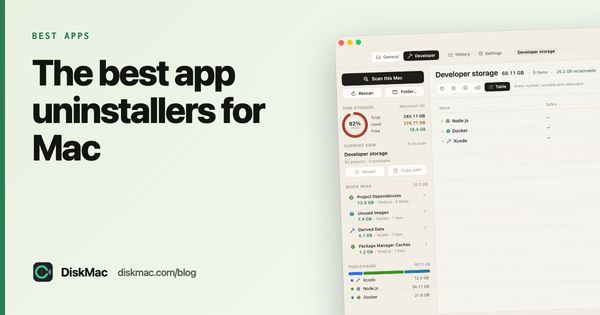
It has two modes. General maps any folder, lists every large file, and uninstalls apps together with the caches, containers and preferences they leave behind. Developer understands what Xcode, Docker, Node, Gradle, Android, CocoaPods and Flutter leave lying around and tells you which of it rebuilds on its own.
- Scanning, all views and large files are free forever
- $9 once for two Macs — no subscription
- About 2 MB, native Swift, notarised by Apple
- Everything goes to the Trash with one-click undo
- No malware scanner
- No duplicate-photo finder
- Not on the Mac App Store (sandboxing blocks disk scanners)
2. CleanMyMac — best if you want one app for everything
MacPaw’s CleanMyMac is the best-known cleaner on the Mac. It bundles junk cleaning, an uninstaller, a malware scanner, a space map and “performance” tools in a polished interface. In 2025 it moved to Basic and Plus plans, sold mainly as yearly subscriptions, with a one-time licence that costs well over $100.
It is a capable app. The catch is the price over time, and the fact that much of what it does — clearing caches, running maintenance scripts — gives back space that macOS would reclaim on its own. See our honest look at whether CleanMyMac is worth it, or the best CleanMyMac alternatives.
3. DaisyDisk — best pure disk visualiser
DaisyDisk draws your disk as an interactive sunburst and lets you drag folders to a collector to delete them. It is fast, beautiful and a one-time $9.99. It does not explain what a folder is or whether it is safe to remove — you need to know that yourself. If you like the idea but want explanations too, read DiskMac vs DaisyDisk.
4. OnyX — best free maintenance tool
OnyX from Titanium Software is free and has been around for two decades. It runs macOS maintenance scripts, rebuilds caches and exposes hidden settings. It is powerful and blunt: there is little explanation, and it is easy to clear something (like font or Spotlight caches) that then takes a while to rebuild. Great for people who know what they are doing.
5. AppCleaner — best free uninstaller
Drop an app on AppCleaner and it lists the support files that belong to it. Free, tiny, and does one thing well. It does not scan the rest of your disk. More options in our best app uninstallers for Mac roundup.
6. GrandPerspective — best free treemap
GrandPerspective draws your disk as a treemap: every file is a rectangle sized by how much space it takes. It is open source and free from its website. The interface is dated and there is no guidance on what is safe to delete, but for “what is huge?” it works. Compare it with DaisyDisk and OmniDiskSweeper in DaisyDisk alternatives.
7. macOS Storage settings — try this first
Open System Settings › General › Storage. macOS shows a breakdown by category and offers to store files in iCloud, empty the Trash automatically, and review large files. It is free and already installed. Its weakness is the vague System Data bar, which can hide tens of gigabytes — our guide to clearing System Data on Mac covers that.
What to avoid
- “Speed up your Mac” claims. Deleting caches does not make a Mac faster; it makes it rebuild them.
- Scary pop-ups and scan scores. A cleaner that tells you your Mac is “at risk” to sell a licence is selling fear.
- RAM cleaners. macOS manages memory well; “freeing” it just forces apps to reload.
- Apps that hide what they delete. If you can’t see the list, don’t press the button.
How we would choose
If you just want to know where your space went, start with a free scan from DiskMac or GrandPerspective. If you are a developer, DiskMac is built for exactly your problem — see the best Mac cleaners for developers. If you want malware scanning in the same app and don’t mind a subscription, CleanMyMac is the polished choice.
Leaving MacKeeper rather than CleanMyMac? See the best MacKeeper alternatives.
FAQ
What is the best free Mac cleaner?
For most people, a free disk map (DiskMac’s free tier or GrandPerspective) plus AppCleaner for uninstalling covers almost everything. Our best free Mac cleaner guide goes deeper.
Do Macs actually need a cleaner app?
Not for speed. They are useful for one thing: finding large, forgotten files and leftovers that macOS will never remove on its own. We wrote a full answer in do Macs need cleaner apps?
Is it safe to use a Mac cleaner?
It is safe if the app shows you exactly what it will remove and moves it to the Trash first. Avoid any cleaner that deletes in bulk without a list.