How to Free Up Space on Mac: 12 Ways That Actually Work
A full Mac is slow to update, can’t download new apps, and starts nagging you with “Your disk is almost full”. These are the twelve fixes that recover the most space, in the order we’d try them.
Step 0: find out what is actually big
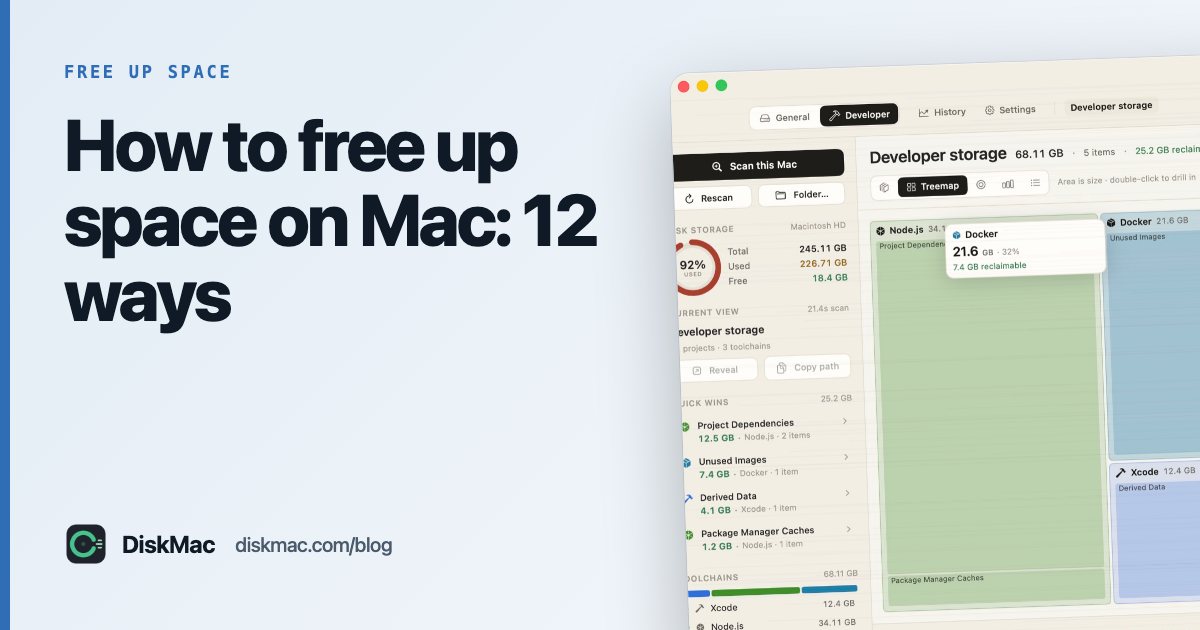
Don’t start deleting at random. Open Apple menu › System Settings › General › Storage to see the categories, or run a free scan with a disk map such as DiskMac to see every folder by size. It usually takes under a minute and tells you which of the steps below will matter on your Mac. Our guide to what’s taking up space on your Mac covers this in depth.
1. Empty the Trash (properly)
Deleted files still take space until the Trash is emptied. Also check app-specific trash: Photos’ Recently Deleted album, Mail’s Trash, and Music’s downloads.
2. Use Apple’s recommendations
In Storage settings, turn on Empty Trash Automatically (removes items older than 30 days) and consider Store in iCloud for Desktop, Documents and Photos if you pay for iCloud storage.
3. Clear out Downloads
Sort ~/Downloads by size in Finder (View › as List, click Size). Installers (.dmg, .pkg), zip files and videos you’ve already used can go.
4. Find large files
Finder’s search can filter by size: press ⌘F, choose File Size › is greater than › 1 GB. Or see five ways to find large files on Mac.
5. Delete old iPhone and iPad backups
Each local device backup can be 20–100 GB. In Storage settings, open iOS Files, or in Finder select your iPhone and click Manage Backups. They live in ~/Library/Application Support/MobileSync/Backup.
6. Uninstall apps you don’t use — completely
Dragging to the Trash leaves caches and support files behind. See how to uninstall apps completely.
7. Remove big app libraries
GarageBand and Logic sound libraries, Final Cut render files, Steam and other game libraries, and virtual machines (Parallels, UTM, VMware) often run to tens of gigabytes each.
8. Clean up Messages attachments
Storage settings › Messages lets you review large attachments. You can also set Messages › Settings › Keep Messages to 1 year.
9. Clear caches you don’t need
Most caches rebuild and macOS trims them automatically, but a few grow huge — especially browser and developer caches. Read how to clear cache on Mac safely.
10. Shrink System Data
If System Data is enormous, the usual culprits are Time Machine local snapshots, iOS backups, caches and developer files. Full walkthrough: how to clear System Data on Mac.
11. If you code: clear developer junk
Xcode DerivedData and simulators, Docker images and node_modules are often the single biggest win. Start with Xcode, Docker and node_modules.
12. Move archives to an external drive
Old photo libraries, finished video projects and archives can live on an external SSD. Keep a second copy somewhere else too.
How much space should you keep free?
Aim for at least 10–15% of the disk, or around 20–30 GB — macOS needs room for virtual memory, updates and snapshots. Already seeing the warning? Read “Your startup disk is almost full”: how to fix it. On a 256 GB Mac, see how to make 256 GB last.
FAQ
What takes up the most space on a Mac?
Usually photos and videos, iPhone backups, app libraries, and on developer machines, Xcode and Docker. A disk map shows you exactly which applies to you.
Is it safe to delete files in the Library folder?
Some are, some aren’t. Caches are generally safe; Application Support often holds real data. When unsure, move to the Trash and use the Mac for a few days before emptying it.
Why is my Mac storage full when I have deleted files?
Check the Trash, Photos’ Recently Deleted album, and Time Machine local snapshots, which hold deleted files until macOS needs the space.